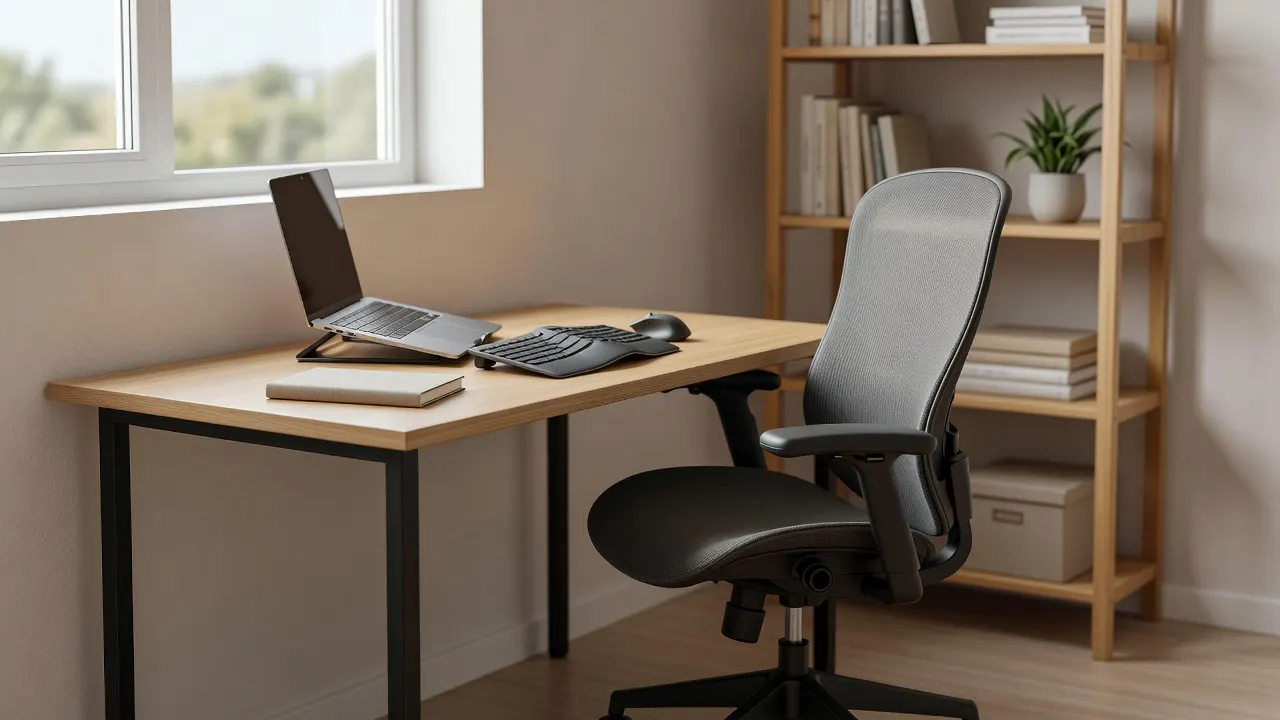
Make a compact workspace work better by arranging your screen and chair to support a comfortable, sustainable posture. Start with the furniture and equipment you already have, then adjust their position and use a workstation checklist to spot problems. Add equipment only when your assessment shows it is needed, rather than trying to copy a full office setup.
Key facts
- Ergonomic chairs are designed to support the spine’s natural shape, helping prevent slumping and reduce stress on other parts of the body.
- Home workers may be able to achieve good posture without office-type furniture or equipment.
- A practical DSE workstation checklist can help with a simple assessment and recording its findings.
- For workers who use DSE daily and continuously for an hour or more as part of normal work, employers must carry out a workstation assessment.
Arrange the workstation around comfortable posture
Begin by deciding where your work will happen. A compact surface can be useful if it gives you room to place the computer directly in front of you. Keep the setup focused on the task rather than filling the available space with equipment you may not need.
Good posture is not a furniture style or a particular look. The aim is a comfortable, sustainable position while working with display screen equipment. Check whether your current chair, desk and computer arrangement let you work comfortably before making changes.
Think of the desktop as a working area, not a storage shelf. Move unrelated items elsewhere so the computer and materials for the current task can sit within the space you have. Make one adjustment at a time, then consider whether the whole arrangement feels more workable.
Equipment should serve the person and the task. Ergonomics involves understanding how people interact with tools, tasks and environments, then applying that knowledge to improve wellbeing, safety and performance. Use that principle to judge each item by whether it helps you work comfortably, rather than by whether it looks like standard office furniture.
Choose and adjust furniture for support
A chair can make a difference to how supported you feel at the desk. Ergonomic chairs are designed to support the natural shape of the spine, which can help prevent slumping and reduce stress on other parts of the body. The useful question is whether the chair suits your body and working position, not whether it has the most features.
Assess the chair as a whole. Relevant considerations include its padding, the support it provides, the size and adjustability of its seat, and the backrest, armrests and headrest. If a chair leaves you uncomfortable, check what can be adjusted before deciding it must be replaced.
Do not assume that a home workspace needs office-type furniture. Home workers may not need it to achieve good posture. Equally, existing furniture or equipment may not be suitable or sufficient. Base decisions on how the setup works for you.
When a change is needed, target the specific problem. A workstation assessment can help decide whether additional equipment is necessary. This keeps a compact space functional and avoids adding items without a clear purpose.
Use assessment to refine the setup
A simple assessment gives you a method for reviewing the workstation rather than relying on guesswork. The HSE provides a practical DSE workstation checklist to help make an assessment and record and communicate its findings. Use the checklist to note what is working and what needs attention.
A self-assessment can be part of this process when workers have suitable training, such as an explanation of how to use an ergonomic checklist or self-assessment tool. If you work for an employer, use the relevant process available to you and share the findings through the appropriate route.
The assessment should reflect where the work takes place. If workers use DSE both at home and in an office, it should cover both settings. A setup that feels workable in one place may not be suitable in another, so consider each arrangement separately.
For employers, protecting workers from health and safety risks linked to computer or laptop work at home is a responsibility. Assessment can help identify whether changes are needed, while ergonomics takes account of people, tools, tasks and environments.
What this means for you?
If you are a remote worker with only a small desk, you do not have to start by buying a complete office setup. First, place the computer in front of you and check whether your present arrangement allows a comfortable, sustainable posture.
Then look at the chair and the available work surface together. A supportive chair matters, but its value depends on how it works with your position at the desk. Review the seat, backrest and available adjustments, and notice whether the setup encourages you to slump or leaves you uncomfortable.
If the arrangement seems awkward, write down the difficulty before changing several things at once. A checklist can help you make a simple assessment and record what you find. This turns a vague feeling into a clear point to review, such as whether a piece of furniture or equipment is suitable for the task.
Use your findings to decide what change, if any, is useful. Home workers may not need office furniture, but their existing equipment may still be unsuitable. Aim for a practical adjustment that addresses the problem, rather than buying items because they are commonly seen in offices.
If you work between home and an office, consider both locations rather than assuming one assessment covers the other. A compact home workspace can be effective when its layout supports the task and you have checked that the arrangement works for you.
What to do now?
- Clear the work area. Move items that do not support your current task, leaving room for the computer and the materials you need. Keep the screen directly in front of you on the desk or another surface.
- Check your posture. Sit at the workstation and judge whether you can work in a comfortable, sustainable position. Notice any part of the arrangement that makes you uncomfortable.
- Review your chair. Consider its support, seat size and adjustability, along with the backrest and other features. Adjust what you can before considering another chair.
- Assess the whole setup. Use a practical workstation checklist to review and record what you find. If you use DSE at home and elsewhere, include both settings in the assessment.
- Make a targeted change. Use the assessment to decide whether extra equipment is needed, rather than adding furniture by default.
Sources
- www.which.co.uk/reviews/office-chairs/article/best-office-chairs-and-buying-guide-aNpAi8A3zmJM
- www.hse.gov.uk/home-working/employer/display-screen-equipment-at-home.htm
- www.hse.gov.uk/msd/dse/home-working.htm
- www.hse.gov.uk/msd/dse//assessment.htm
- www.hse.gov.uk/msd/dse/good-posture.htm
- training.hse.gov.uk/courses/ergonomics
About this page
Written with AI assistance from the sources listed above, then checked by automated fact, source, repetition and quality checks before publishing.
Facts and links checked on 30 October 2026. Summarises the sources linked above; check the linked source for the latest version.
Products worth considering
- Ergotron LX single monitor arm: Constant-force arm for monitors up to 34 inches with a 10-year warranty. Check price on Amazon
Some links on this page are affiliate links: if you buy through them we may earn a commission, at no extra cost to you. As an Amazon Associate, DYOR Collective Labs earns from qualifying purchases.